ZTmail App User Guide
Welcome to ZTmail App. ZTmail App is a completely free email client with full S/MIME automation, including S/MIME encryption, digital signatures, and certificate automation. It can also automatically configure free MV email certificates trusted within the ZTmail Trust ecosystem. For users who need higher levels of trusted identity or broader global trust, paid services are also available, including IV/OV/SV S/MIME certificates, globally trusted S/MIME certificates, and other value-added services.
1. Check the FAQ First
We recommend checking the FAQ first. It covers the most common questions about using ZTmail App.
2. Add Your Email Account
After installing the App, the first step is to add your email account. In most cases, you only need to enter your email address and password. If the App cannot automatically configure your mail server's IMAP and SMTP settings, you may need to enter the settings provided by your email service provider manually.
Tip: Some email services, such as Gmail, may require an App Password. Follow your email provider's instructions to set one up, then enter it here.
3. Request an S/MIME Certificate
Once you sign in to your email account, you can send and receive regular email normally. To enable automated email encryption and digital signatures, go to “Settings” → “Certificates” in the upper-right corner, select the cryptographic algorithm you want under “Request Certificates”, and click “Apply Now”. You can request an RSA algorithm certificate, an SM2 algorithm certificate, or both. Once the certificate is issued, ZTmail App automatically configures it, allowing you to use S/MIME digital signatures and encryption.
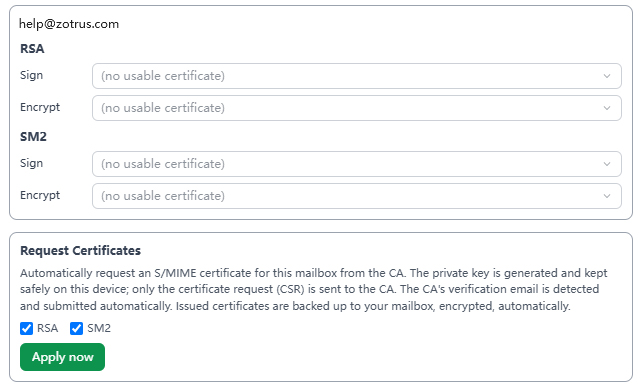
Why do you need to click “Apply Now”?
This is part of ZTmail's principle of user autonomy. ZTmail does not require you to use the free certificate provided by ZTmail App. You can choose to request one or simply import an S/MIME certificate that you obtained from other CAs. If you keep seeing "Waiting for verification email" after clicking to apply for certificates, it might be that the email system has put the verification code email in the SPAM folder. Even though the App will also check the SPAM folder, we suggest users manually move any email with the subject "ACME: l7aAx7-pXb4TZo7kG..." to the inbox so the app can quickly complete the email verification and automatically issue and deploy the certificate. If you haven't received the verification code email after more than 5 minutes, please submit a bug following step 5 below.



4. Confirm Automatic Backup and Save Your Recovery Key
After your certificate is issued, ZTmail App automatically encrypts and backs up your certificates, private keys, contacts etc. to your own mailbox in a dedicated “ztmailbak” folder. Go to the “Backup” menu and make sure it shows “Auto-sync is on”, if it is not enabled, click “Sync Now.” Do not delete the “ztmailbak” folder. It stores your encrypted backups, and deleting it will prevent you from using the backup to restore your data.
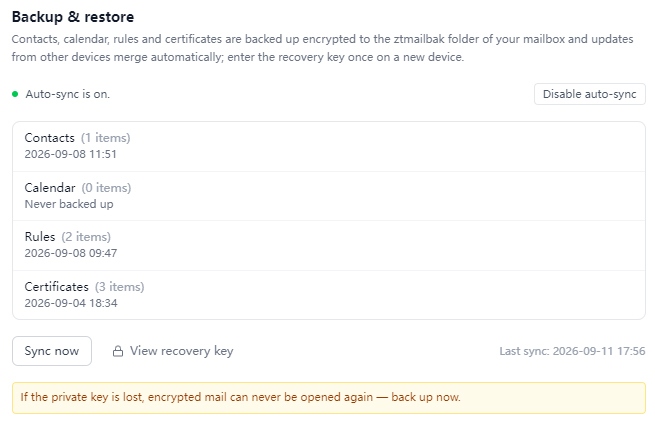
Most importantly, view your Recovery Key immediately and store it securely. The Recovery Key is required to restore your backed-up certificates, private keys, contacts etc. on a new device, so that you can continue using ZTmail App and decrypt previously encrypted emails. It is recommended to write down your Recovery Key and keep it in a secure physical location. Do not share it with anyone. This step is very important.
5. Report Problems and Share Feedback
If you encounter any problems while using the App or have suggestions for improvement, go to “About” → “Report a Problem” and contact us by email.
Finally, welcome to ZTmail App. Let encrypting every email become a new way of life on the Internet.